Between planning and building, your AI Advisor keeps watch.
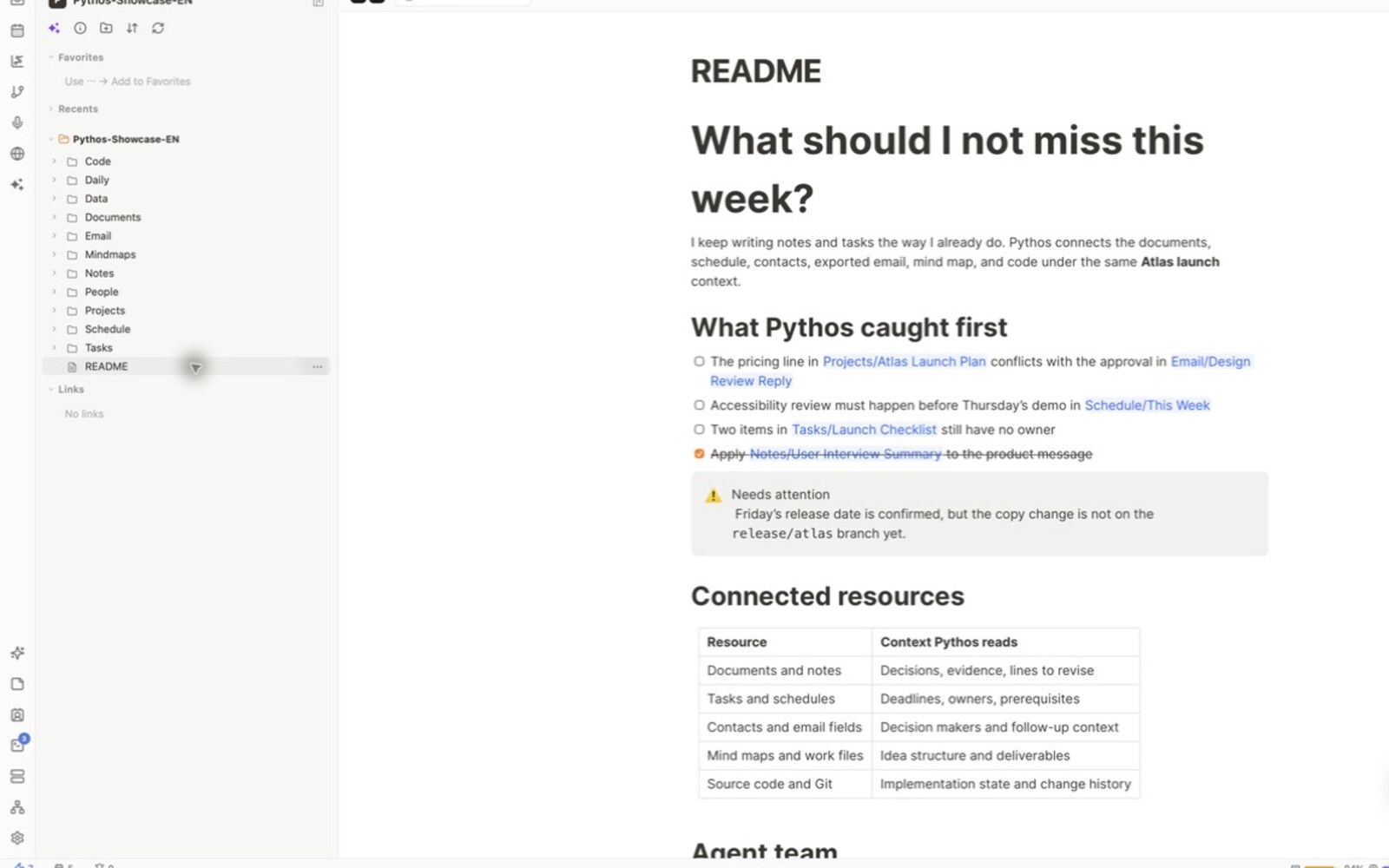
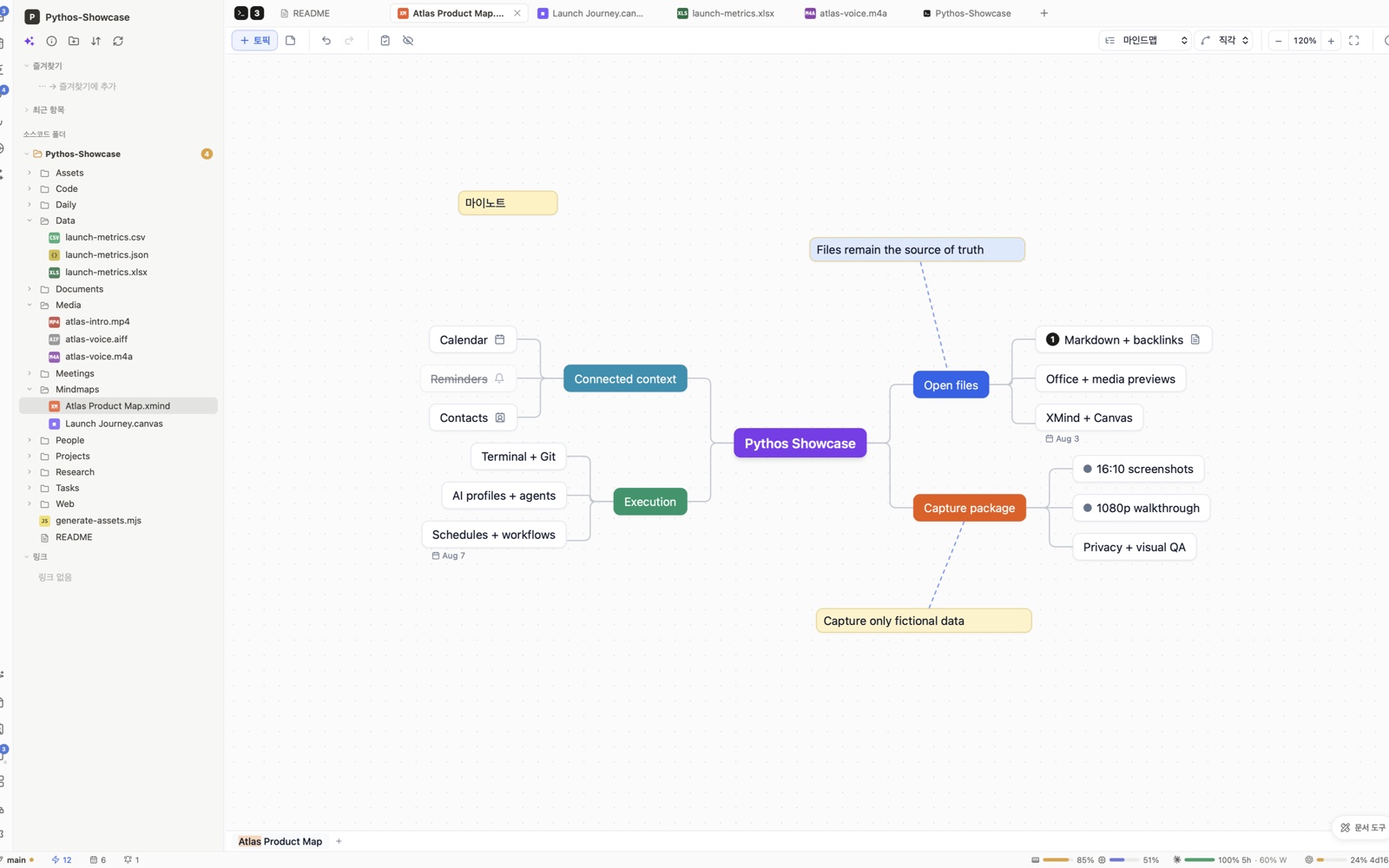
Plan in Markdown, HTML, and mind maps. Build in the terminal and Git. PYTHOS keeps comparing both work surfaces and tells you first when they drift, with links to the evidence.
PLAN · Markdown + HTML + Mindmap
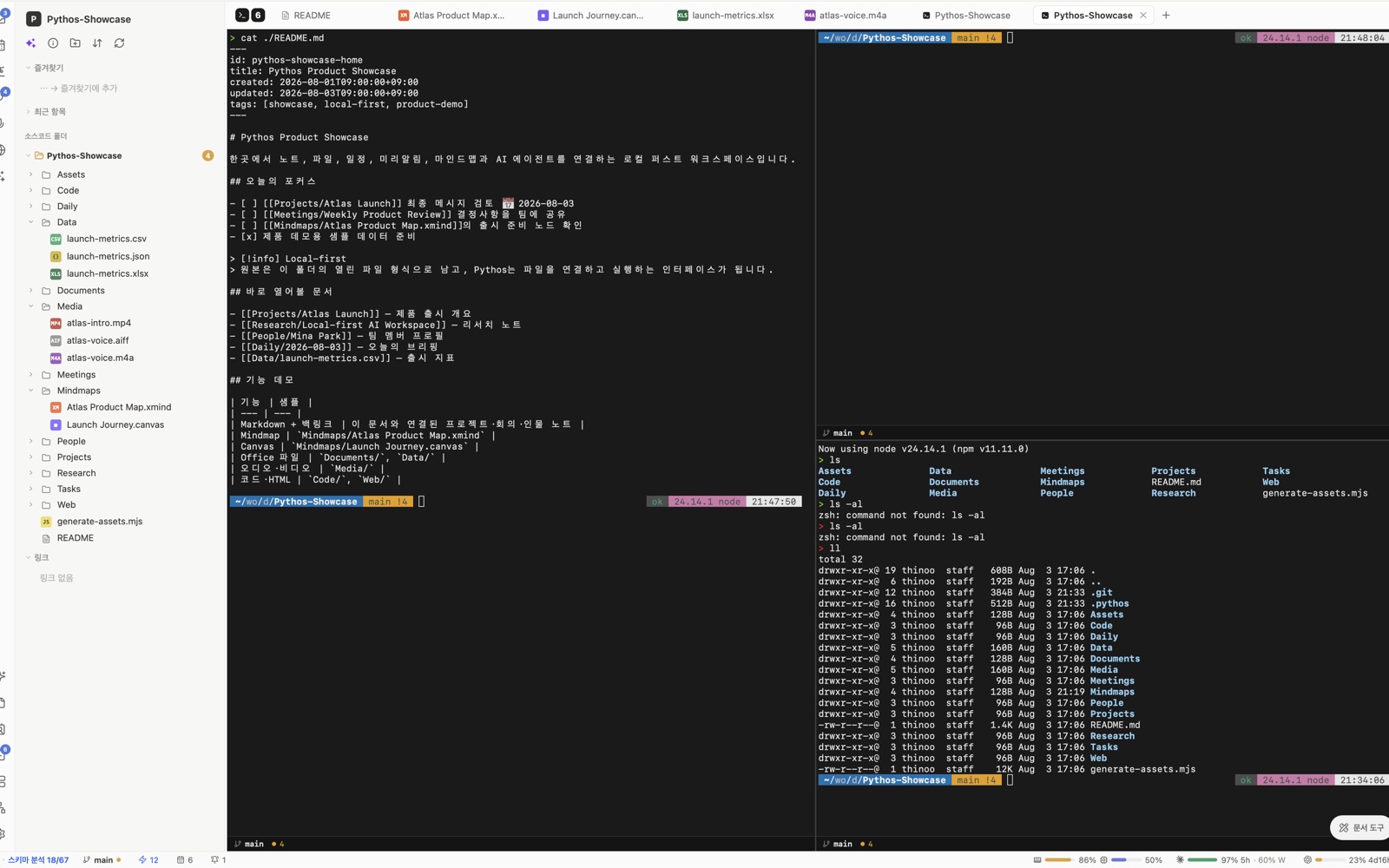
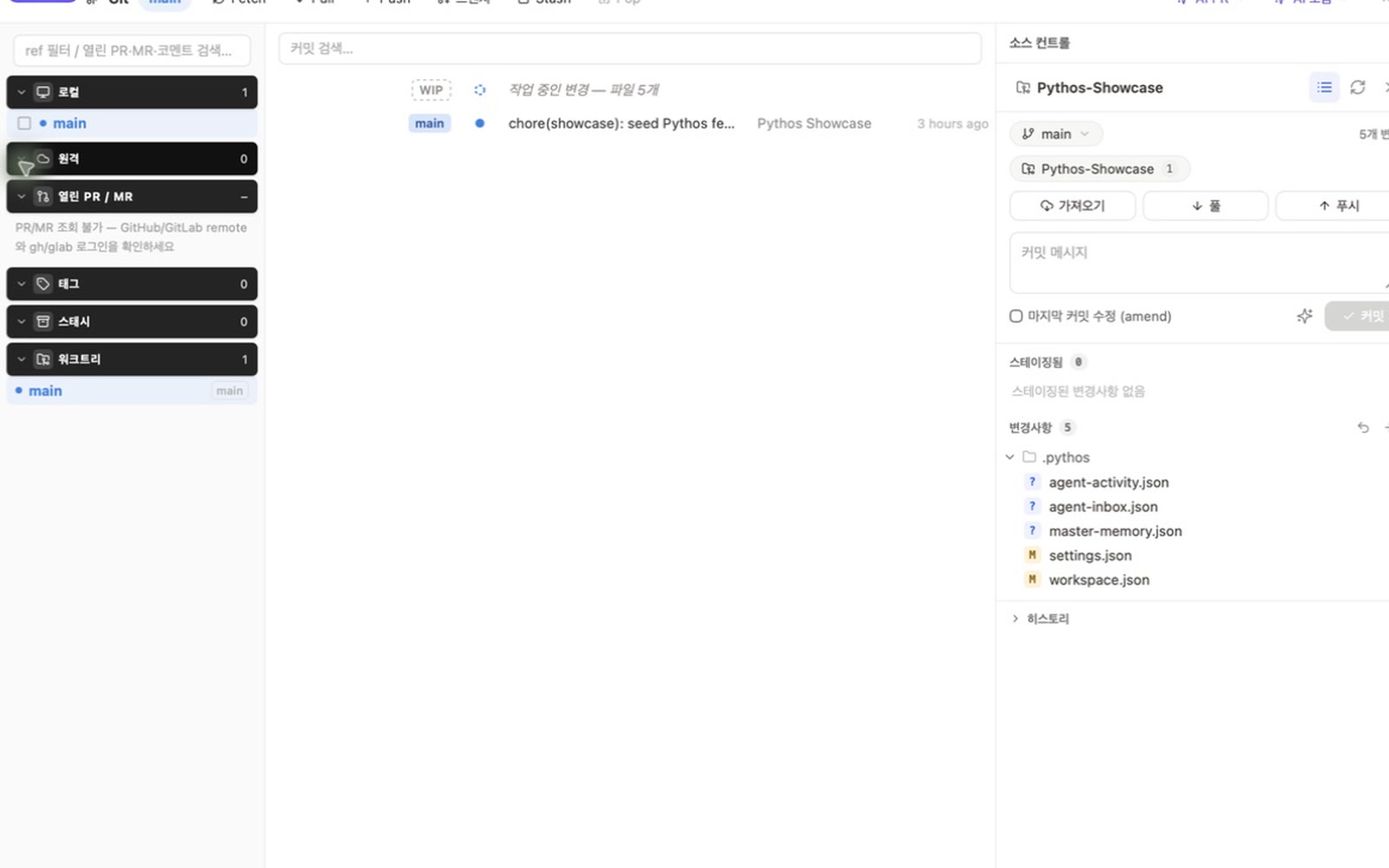
BUILD · Terminal + Git
- 01Write
Shape the idea in Markdown, HTML, and mind maps.
- 02Connect
Link documents, schedules, files, and code.
- 03Compare
Keep decisions aligned with the live Git state.
- 04Advise
See each mismatch first, with links to its evidence.
Here is how the Agent works.
It reads your folder into an ontology graph, compares only what changed against the previous state, and leaves comments with links to the evidence. The diagram below is the whole loop.
- 1. It reads your folder — Notes, reminders, schedules, contacts, and code in the folder you pick become entities. Nothing moves, nothing is reformatted.
- 2. It connects the relationships — Links between projects, people, deadlines, and files live in an ontology graph. Connection, not search.
- 3. It comments with evidence — When something changes, it compares against the previous state and names the place that disagrees. Every line links the files it read.
An Agent that watches, compares, and speaks first.
The PYTHOS Agent doesn't wait in a chat box. Write a sentence in a note and it reads the schedule, reminders, mail, and commits connected to that sentence — then returns advice. Every action stays on screen.
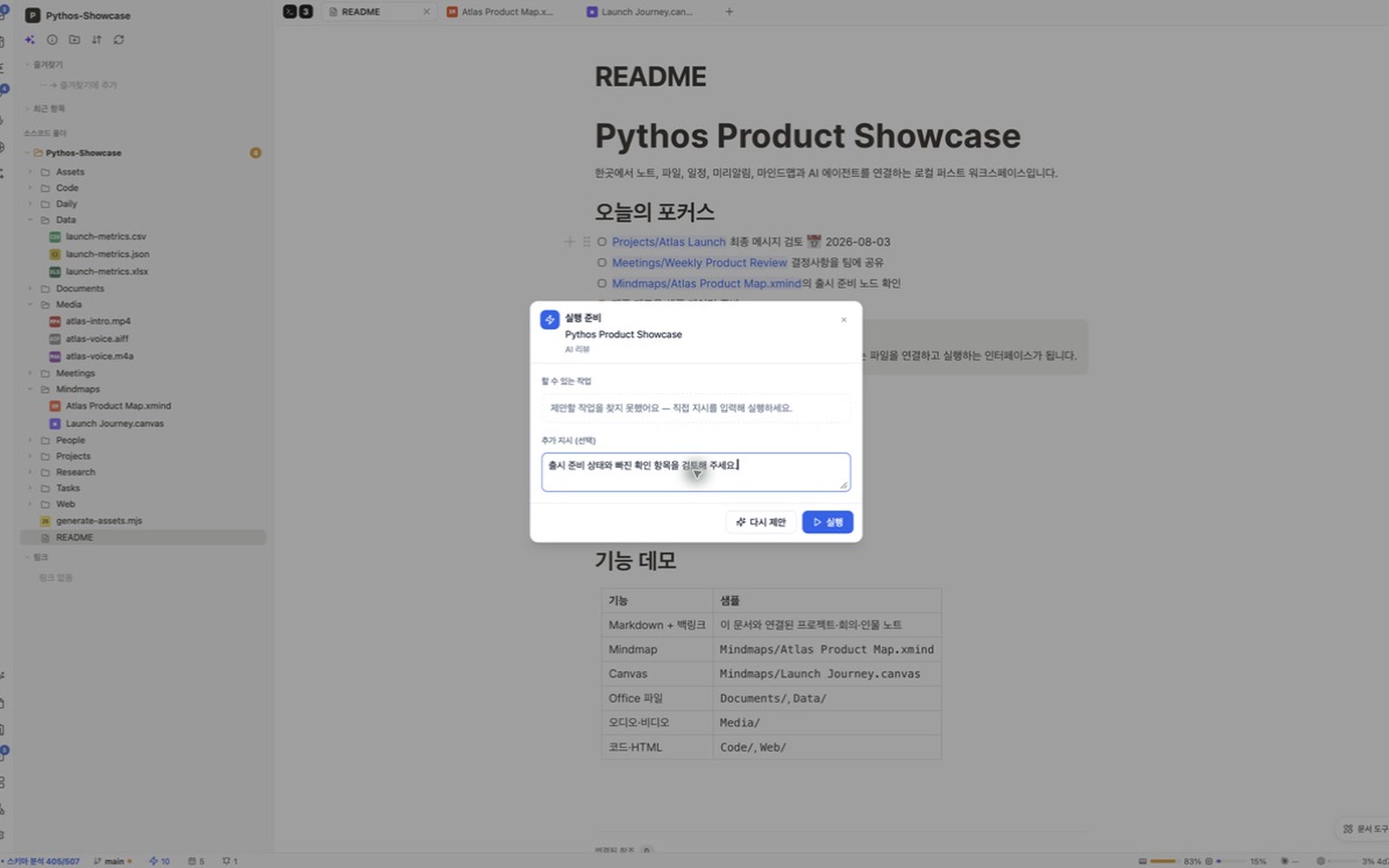
The open note becomes the review target
Set the open note as the review target and add an instruction in the preparation dialog. A person decides whether it runs.
- AI review
- Instruction
- Run boundary
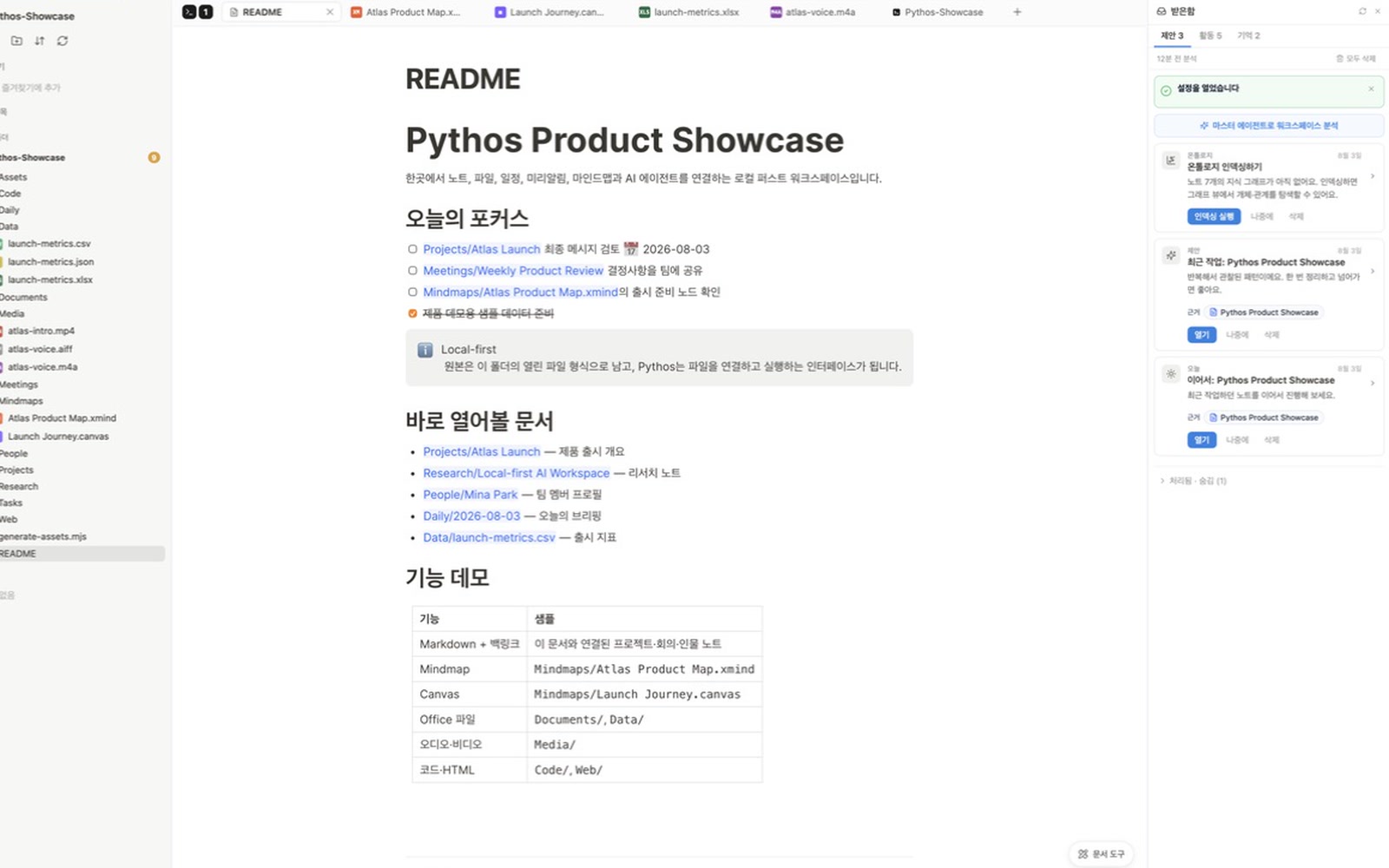
Advice lands in the inbox
Recommendations, activity, and memory stack up in separate inbox views — never mixed into the same line as a real workspace change.
- Inbox
- Activity
- Memory
- An Agent team with roles — Master picks what to check today, Research reads the material, Release compares schedules and Git state. Owners and delegation stay on the organization view.
- A briefing at 9:00 every morning — A scheduled Agent overlays reminders, calendar, and yesterday's commits into a short list of what to check today.
- Comments that link their evidence — Every comment carries links to the files it read. One click lands you inside the document.
- Memory you can open and delete — Every observation and commitment the Agent kept is listed in the Memory tab. Wrong one? Delete it there.
- Nothing runs without approval — Comments are automatic. Anything that touches files or outside systems waits for the approval rules you set.
- Away from the desk? Discord — Messages from allowed users reach the workspace Agent and the answer comes back to the same channel. Approval rules still apply.
You write. The Agent takes care of the rest.
Notes, Apple Reminders, calendar, work files, and code share one graph, so the Agent knows where things stand. Here is what it does for each kind of builder, on real app screens. Anything that changes files runs only after you approve.
App developer
Write “Friday release confirmed” and the Agent checks the branch and commits. The terminal and Git sit beside the note, so the gap between decision and code is right there.
- Git
- Branch
- Commit
Product designer
Edit a screen spec and the Agent finds the tasks hanging on that screen, the demo it affects, and the items nobody owns. “Why did this change?” gets answered with links.
- Mindmap
- Screen spec
- Relations
What it can't do yet.
Apple Silicon Macs only — no Windows or Linux builds. No co-editing, no realtime sync. This is a v0.1.1 preview built for one person managing their own folders. If you need it for a team, wait for a later version.
- Apple Silicon only
- No Windows/Linux
- No co-editing
- v0.1.1 preview
A terminal beside the spec. Git beside the decision.
The Agent sees well because everything lives in one place. Notes, docs, mind maps, schedules, a terminal, and Git open in the same window.
- Notes, docs, and mind maps in one window — Markdown notes, Canvas docs, XMind mind maps, and spreadsheets open in one workspace, in their original formats.
- Reminders and calendar join the graph — Apple Reminders and schedules sit beside documents and source code, so a task keeps its evidence.
- Your folder, your formats — No new method, no private format. Point it at the folder where the work already lives.
- A split terminal beside the spec — Run commands on the screen where you're reading. Or float the terminal as a PIP window over the Canvas.
- Git beside the decision — If the note says Friday release confirmed, someone has to check the branch actually changed. Status and diffs sit next to the note.
- Impact, not similar sentences — Change one pricing line and PYTHOS follows it to the reply, the checklist, and the branch that carries it.
The running product, not a decorative mockup.
We opened the sample folder in PYTHOS and captured the relationship graph, original files, terminal and Git, Agent settings, and review flow in order. Every screen is a 1600×1000, 16:10 direct capture with accounts, API keys, and private calendar data excluded.
Embeddings find similar sentences. That's where they stop.
PYTHOS records relationships, not similar sentences. Ontology Explorer shows how files, schedules, and agents actually hang together, and the inbox keeps recommendations and real workspace changes on separate lines.
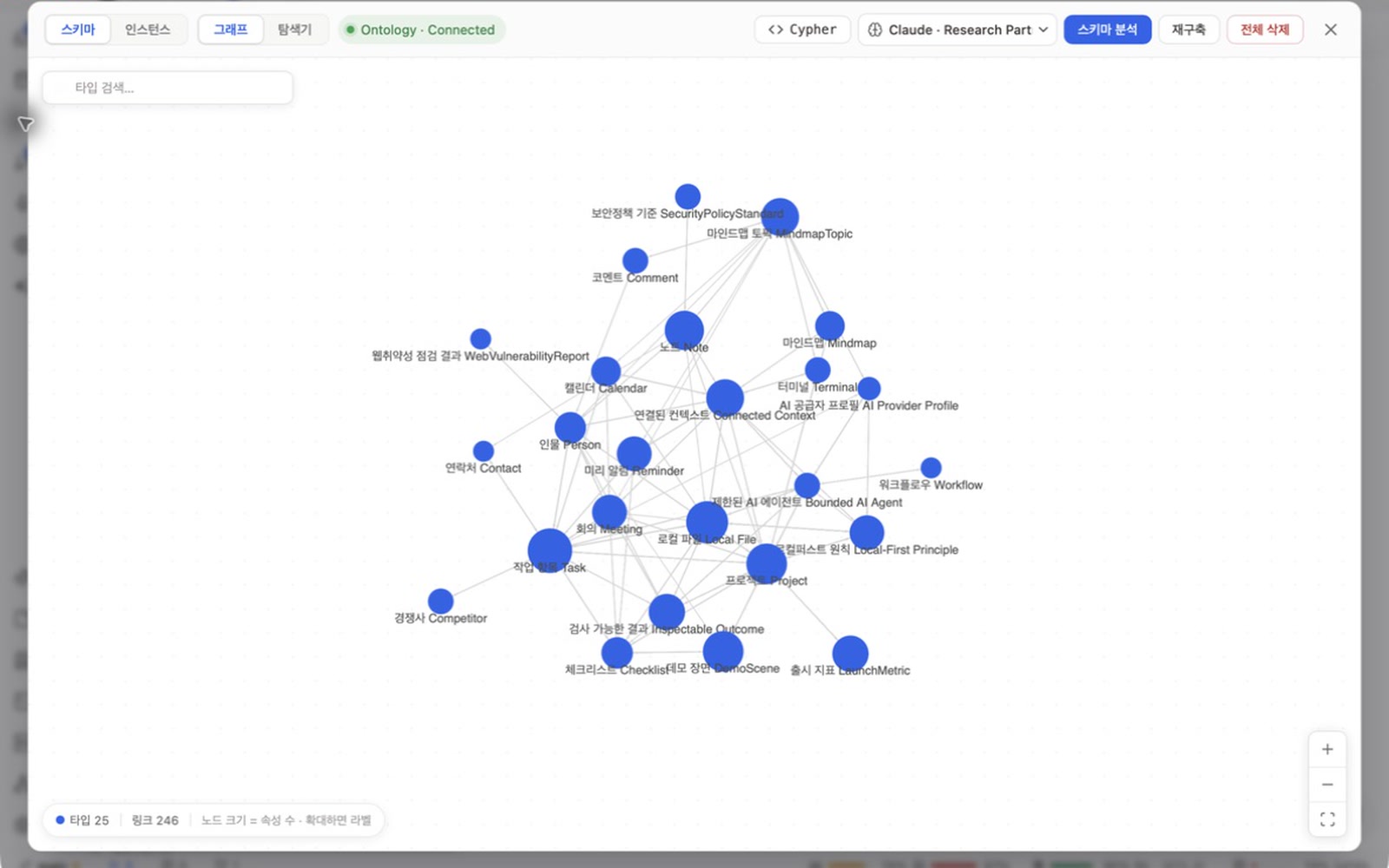
An ontology for relationships
Embeddings find similar sentences. Ontology Explorer shows schemas and instances that connect files, schedules, and agents.
- Ontology
- Schema
- Relations
An inbox that separates evidence
Recommendations, activity, and memory have separate views. Agent output does not get mixed into the same line as an actual workspace change.
- Inbox
- Activity
- Memory
The files you already use stay as they are.
Markdown stays Markdown, XMind stays XMind. Canvas files, spreadsheets, voice notes, reminders, and daily notes open in the same workspace in their original format.
XMind mind map
Open the existing nodes and branches. The structure of the idea stays visible without a format migration.
- XMind
- Mindmap
- Local file
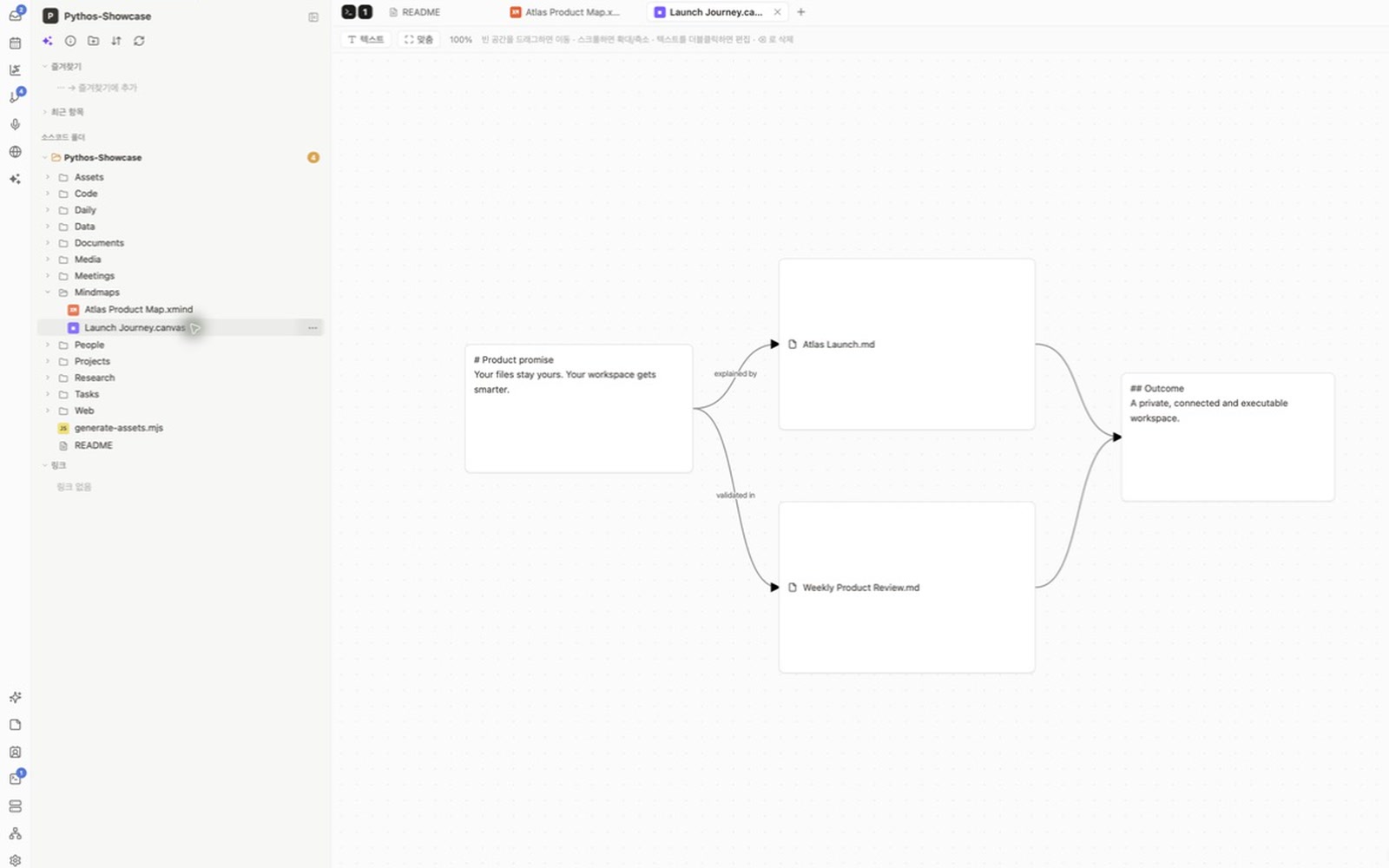
Canvas
Launch cards and connectors share one canvas. Sequence and dependencies do not have to be rewritten as prose.
- Canvas
- Planning
- Relations
Your files stay yours.
PYTHOS treats your local folder as the original. Nothing moves into a private format, and nothing is sent without your say.
- Delete the app, keep the folder — Disconnect anytime. Your Markdown, XMind, spreadsheets, and Git history stay exactly where they were.
- Open everything in another app — Notes in Markdown, mind maps in XMind, data in XLSX, CSV, and JSON, history in Git. There is no PYTHOS-only format.
- You set the AI boundary — Choose an AI provider per task, and set approval rules for anything that touches files or outside systems. Every API key in the public captures is empty.
Start with the folder you worked in today.
Open the DMG, launch it, and point it at today's folder. When the Agent finishes reading, what to fix and what to do next are waiting — with links to the evidence. Nothing moves, nothing is reformatted. Not for you? Disconnect, and everything stays as it was.